
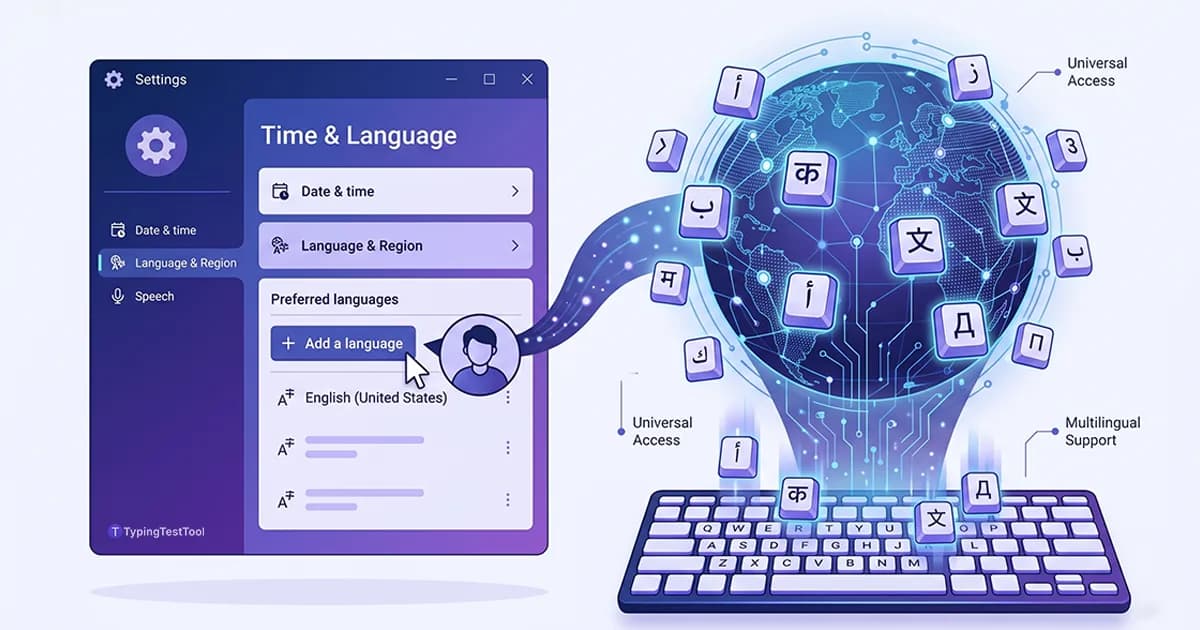
Whether you're learning a new language, communicating with international colleagues, or writing in your native tongue, configuring your Windows computer to type in multiple languages is essential. This guide walks you through enabling any keyboard layout in Windows 10 and 11, including specific setup instructions for Hindi, Arabic, Korean, Chinese, and Russian.
1. How to Add a Language Keyboard (Windows 10/11)
Microsoft has streamlined the process of adding new languages, making it nearly identical for both Windows 10 and Windows 11. Follow these steps to install the basic typing package for your desired language without changing your system's display language.
Step-by-Step Instructions
- Open Settings: Press
Win + Ior search for "Settings" in the Start menu. - Navigate to Language: Click on Time & Language in the main menu, then select Language & region (or just Language in Windows 10).
- Add a language: Click the Add a language button next to "Preferred languages".
- Search and Select: Type the name of the language you want (e.g., "Hindi", "Arabic", "Korean") in the search bar. Select it and click Next.
- Configure Installation: Crucial step: Uncheck the box that says "Set as my Windows display language" unless you want all your menus and apps to change to this language. Ensure "Basic typing" is checked.
- Install: Click Install. Windows will take a few moments to download the necessary keyboard packages.
2. Switching Between Keyboards
Once you have multiple languages installed, you need a quick way to switch between them while typing. Windows provides several methods.
| Method | Action | Best For |
|---|---|---|
Win + Spacebar | Opens an overlay menu of installed languages. Keep holding Win and tap Spacebar to cycle through. | Quick, visual switching (Recommended) |
Alt + Shift | Instantly cycles to the next language in your list without an overlay menu. | Fastest switching for power users |
| Taskbar Icon | Click the language abbreviation (e.g., ENG, ARA) near the clock to open the menu. | Mouse-heavy workflows |
3. Language Bar Configuration
The Language Bar is a small tool that appears on your desktop or taskbar, offering quick access to language settings and IME (Input Method Editor) tools. It's especially useful for Asian languages where you might need to toggle between Latin characters and native scripts.
To customize it: Go back to Settings → Time & language → Typing → Advanced keyboard settings. Here you can choose to "Use the desktop language bar when it's available," which lets you undock the language indicator from the taskbar and place it anywhere on your screen.
4. Per-Language Setup Notes
Not all keyboards behave the same way. Some languages require specific layouts or Input Method Editors (IMEs) to function properly.
Enable Hindi Keyboard Windows
When installing Hindi, you have two primary layout options. Click on "Hindi" in your language list, go to Options, and under "Keyboards," click Add a keyboard.
- Hindi Phonetic: The best choice for beginners. You type in English ("namaste") and the IME transliterates it to Hindi ("नमस्ते") in real-time.
- Hindi Traditional (Inscript): The standard layout where specific keys map directly to specific Hindi characters. Requires memorizing the layout or having a physical Hindi keyboard.
Arabic Keyboard Windows 10/11
Arabic is a right-to-left (RTL) language. When you switch to the Arabic keyboard, Windows automatically adjusts text direction in most modern apps (like Word or Notepad).
- Layout Choice: Windows defaults to Arabic (101) for most regions. If you are in North Africa, you might prefer Arabic (102) AZERTY.
- Tip: You can toggle text direction manually in text editors using
Right Ctrl + Right Shiftfor RTL andLeft Ctrl + Left Shiftfor LTR.
How to Type Chinese on Windows
Chinese requires an IME to convert phonetic spelling into characters.
- Simplified vs Traditional: Choose "Chinese (Simplified, China)" for Pinyin or "Chinese (Traditional, Taiwan)" for Bopomofo/Cangjie.
- The Shift Toggle: When you switch to the Chinese keyboard, it might still type in English. Press the
Shiftkey once to toggle the IME between Chinese character input and English alphanumeric input. You'll see a small "中" or "英" icon on your taskbar indicating the current mode.
How to Enable Korean Keyboard
Like Chinese, Korean uses an IME. After adding the "Korean" language pack:
- Switch to the Korean keyboard layout.
- You will likely still be typing in English initially. Press the
Right Altkey (which acts as the Hangul/English toggle key) to start typing Hangul characters. - The taskbar icon will change from an "A" to a Korean character ("가").
Russian Keyboard Windows
The standard Russian keyboard uses the Cyrillic alphabet mapped to a layout called ЙЦУКЕН (JCUKEN).
- Standard Layout: If you have a physical Russian keyboard or keyboard stickers, the default "Russian" layout is perfect.
- Phonetic (Mnemonic) Layout: If you want the Cyrillic letters to correspond to their English phonetic equivalents (e.g., pressing "F" outputs "Ф"), you can add the "Russian - Mnemonic" keyboard from the language options menu.
Practice Your New Layout
Once you've installed your new keyboard, you need to build muscle memory. Don't look down at your keys. Instead, use an on-screen keyboard guide and practice regularly. You can test your speed in multiple languages using our free typing tests.
Frequently Asked Questions
How do I switch between different keyboard languages in Windows?
The fastest way is pressing the Windows Key + Spacebar. It opens a visual menu on the side of your screen. You can also use the traditional shortcut Alt + Shift, or simply click the language abbreviation (like ENG) on the right side of your taskbar and select from the list.
Why is the Chinese or Korean keyboard only typing in English?
For IME (Input Method Editor) languages, switching the system language isn't always enough; you must also toggle the input mode. For Korean, press the Right Alt key to toggle between English and Hangul. For Chinese (Pinyin), press the Shift key to toggle between English and Chinese characters.
Which Hindi keyboard layout should I install on Windows?
Windows offers 'Hindi Traditional' (Inscript) and 'Hindi Phonetic'. The Phonetic keyboard is generally easier for beginners and English speakers, as it transliterates English letters into Hindi dynamically (e.g., typing "namaste" outputs "नमस्ते"). The Traditional layout requires learning the specific Inscript key map.
Does adding a language keyboard change my Windows display language?
No, not unless you explicitly tell it to. When adding a language through settings, ensure the box that says "Set as my Windows display language" is unchecked. If you only install the "Basic typing" feature, your system menus, apps, and settings will remain in your original language.

"Meet Vijay Chauhan, the founder of TypingTestTool with over 10+ years of web development experience. Discover how he engineered this platform to help millions master touch typing globally."